
အကောင့်နှင့် လုံခြုံရေး
Binance KYC တင်နည်း — Identity Verification နဲ့ 2FA
မြန်မာအကောင့်အတွက် လက်ခံမယ့်စာရွက်ကို မျက်နှာပြင်ပေါ်ကနေ စစ်ပြီး အထောက်အထားတင်ခြင်း၊ လူအစစ်ဟုတ်မဟုတ်စစ်ရာမှာ မအောင်မြင်ရင် ဖြေရှင်းနည်း၊ နှစ်ဆင့်အတည်ပြုမှုဖွင့်နည်းနဲ့ Verified အခြေအနေအထိ ပြီးအောင်လုပ်နည်း။
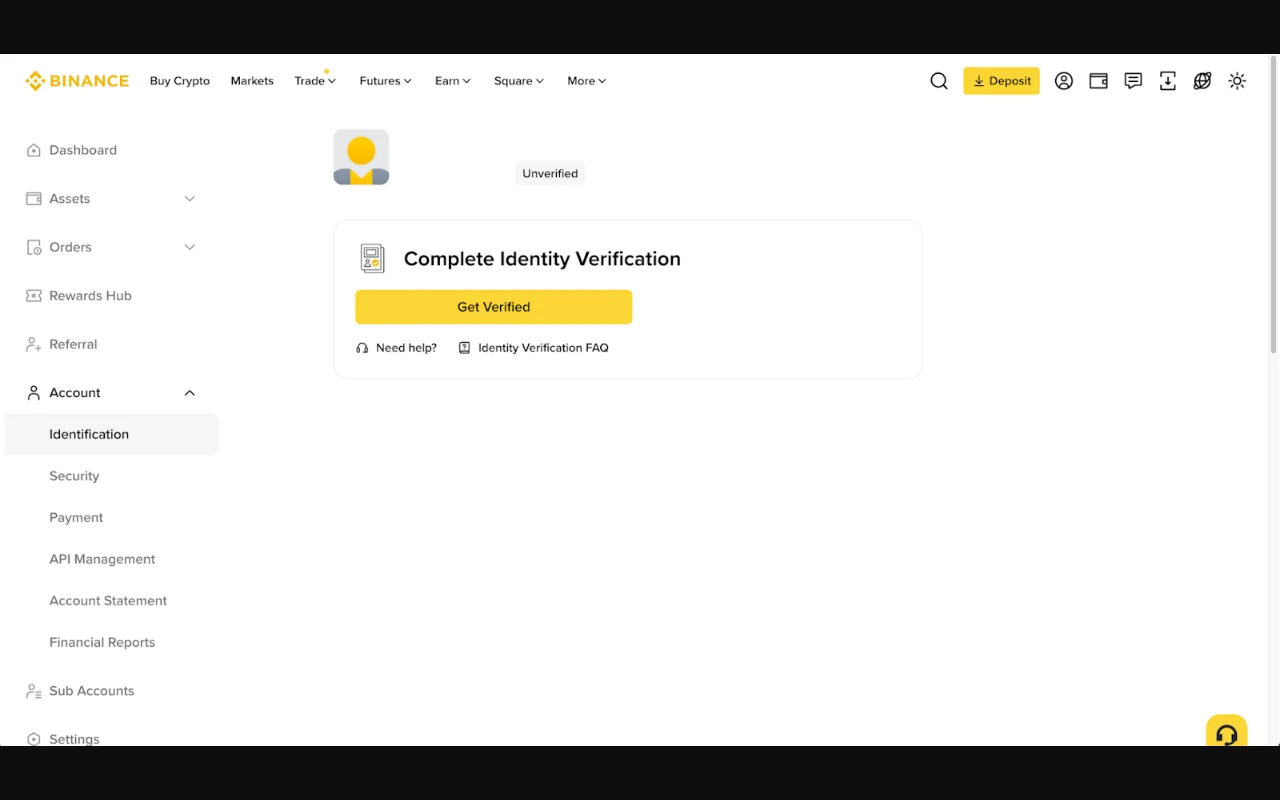
Binance မှာ KYC လို့ခေါ်တဲ့ အထောက်အထားစိစစ်မှု တင်ရာမှာ အကောင့်ပိုင်ရှင်ရဲ့ ကိုယ်ရေးအချက်အလက်နဲ့ နေထိုင်ရာကို မှတ်ပုံတင်စာရွက်၊ ဓာတ်ပုံနဲ့ လူအစစ်ဟုတ်မဟုတ်စစ်တဲ့အဆင့်တွေနဲ့ အတည်ပြုရပါတယ်။ KYC ပြီးသွားတိုင်း ရင်းနှီးမြှုပ်နှံမှု လုံခြုံသွားတယ်၊ ပစ္စည်းအားလုံး သုံးလို့ရတယ် ဒါမှမဟုတ် ငွေထုတ်ရာမှာ ကန့်သတ်ချက်မရှိတော့ဘူးလို့ မဆိုလိုပါဘူး။ အထောက်အထားစိစစ်မှု၊ အကောင့်လုံခြုံရေးနဲ့ ပစ္စည်းသုံးခွင့် သုံးခုကို သီးခြားစီ စစ်ရပါတယ်။
လိုအပ်တဲ့စာရွက်တွေနဲ့ စိစစ်မှုအဆင့်တွေကို Binance ရဲ့ တရားဝင် အထောက်အထားစိစစ်မှုလမ်းညွှန် မှာ ပြန်စစ်ပါ။ လိုအပ်ချက်တွေဟာ နိုင်ငံ၊ အကောင့်အမျိုးအစားနဲ့ ပလက်ဖောင်းအပြောင်းအလဲအလိုက် ကွာနိုင်ပါတယ်။
မြန်မာအကောင့်အတွက် ဒီဆောင်းပါးက ဘယ်အထိပဲ ပြောနိုင်သလဲ
Binance ရဲ့ လက်ရှိ KYC အကျဉ်းချုပ် မှာ အစိုးရထုတ်မှတ်ပုံတင်၊ နေရပ်လိပ်စာအချက်အလက်နဲ့ အခြေအနေအလိုက် ထပ်မံစစ်ဆေးမှုတွေ လိုနိုင်ကြောင်း ရှင်းပြထားပါတယ်။ ဒါပေမယ့် မြန်မာအသုံးပြုသူအတွက် လက်ခံမယ့်စာရွက်အမျိုးအစား၊ ဘယ်နှစ်ဖက်တင်ရမလဲ၊ သက်တမ်းစည်းမျဉ်းနဲ့ နေရပ်လိပ်စာသက်သေ လိုမလိုဆိုတာကို အများပြည်သူဖတ်နိုင်တဲ့ဆောင်းပါးကနေ အတည်မပြုနိုင်ပါဘူး။
မှန်ကန်တဲ့လုပ်နည်းက တရားဝင် app ဒါမှမဟုတ် ဝဘ်ဆိုက်ထဲက Identification/Verification အဆင့်ကိုဖွင့်၊ နေထိုင်ရာနဲ့ စာရွက်ထုတ်ပေးတဲ့နိုင်ငံကို အမှန်အတိုင်းရွေးပြီးနောက်၊ မျက်နှာပြင်ပေါ်မှာ ပေါ်လာတဲ့ လက်ခံစာရွက်စာရင်းကိုသာ နောက်ဆုံးစာရင်းအဖြစ် ယူဖို့ပါပဲ။ မျက်နှာပြင်မှာ မပြထားတဲ့စာရွက်ကို ဒီဆောင်းပါးကြောင့် လက်ခံလိမ့်မယ်လို့ မယူဆပါနဲ့။ မျက်နှာပြင်နမူနာတစ်ခုကိုလည်း ဒေသတစ်ခုလုံးအတွက် ဥပဒေစည်းမျဉ်းအဖြစ် မသုံးပါနဲ့။
မစတင်မီ အချက်အလက်တွေ ကိုက်ညီမှုရှိမရှိ စစ်ပါ
- သက်တမ်းမကုန်သေးတဲ့ အစိုးရထုတ်မှတ်ပုံတင်စာရွက်
- စာရွက်နဲ့ကိုက်ညီတဲ့ တရားဝင်အမည်နဲ့ မွေးသက္ကရာဇ်
- မှန်ကန်တဲ့ စာရွက်ထုတ်ပေးသည့်နိုင်ငံနဲ့ နေထိုင်ရာ
- အလင်းရောင်ကောင်းပြီး ရှင်းလင်းစွာရိုက်နိုင်တဲ့ ကင်မရာ
- တည်ငြိမ်တဲ့ အင်တာနက်
- တရားဝင် Binance app ဒါမှမဟုတ် ဝဘ်ဆိုက်
- လိုအပ်ရင် နေရပ်လိပ်စာ ဒါမှမဟုတ် ငွေရင်းမြစ်ပြသည့်စာရွက်
အမည်အစီအစဉ်၊ အလယ်နာမည်၊ အင်္ဂလိပ်လိုစာလုံးပေါင်းပုံ၊ ရက်စွဲပုံစံနဲ့ စာရွက်နံပါတ်တွေကို ကိုယ့်ဘာသာမပြင်ဘဲ စာရွက်ပေါ်ကအတိုင်း ထည့်ပါ။ နိုင်ငံသားဖြစ်မှု၊ နေထိုင်ရာနဲ့ စာရွက်ထုတ်ပေးတဲ့နိုင်ငံ မတူဘူးဆိုရင် မှန်းမဆဘဲ မျက်နှာပြင်ပေါ်က ညွှန်ကြားချက် ဒါမှမဟုတ် တရားဝင်အကူအညီဌာနကို လိုက်နာပါ။
စာရွက်တွေကို chat၊ အီးမေးလ် ဒါမှမဟုတ် "အကူအညီဌာနဝန်ထမ်း" ဆိုသူဆီ ဘယ်တော့မှ မပို့ပါနဲ့။ စိစစ်မှုအဆင့်အတွင်းက တရားဝင်တင်သွင်းရာနေရာကနေသာ တင်ပါ။
အဆင့် ၁ — စာရွက်အမျိုးအစားနဲ့ ထုတ်ပေးသည့်နိုင်ငံ
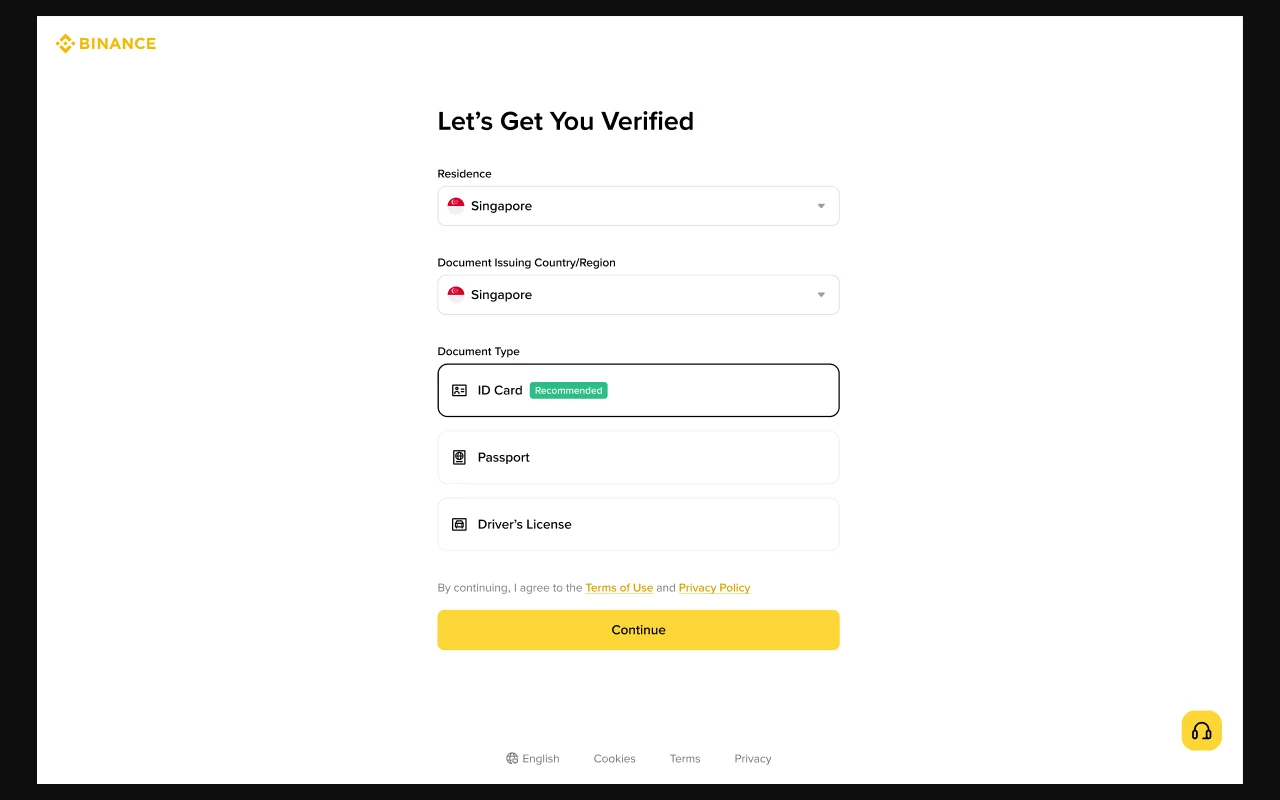
စာရွက်အမျိုးအစား၊ ထုတ်ပေးသည့်နိုင်ငံနဲ့ နေထိုင်ရာအချက်အလက်ကို အမှန်အတိုင်း ရွေးပါ။ ရှေ့/နောက် နှစ်ဖက်လိုရင် နှစ်ဖက်လုံး တင်ပါ။ အလင်းပြန်တာ၊ ဝါးတာ၊ ဖြတ်မိတာ၊ အရောင်တောက်လွန်းတာ ဒါမှမဟုတ် ထောင့်တစ်ခုပျောက်နေတာတွေက ငြင်းပယ်ခံရနိုင်ပါတယ်။ ဓာတ်ပုံပြင်တဲ့ app နဲ့ စာရွက်ကို ပြင်ဆင်မထားပါနဲ့။
စာရွက်ဓာတ်ပုံမတင်မီ စစ်ဆေးရန်စာရင်း
- အစွန်းလေးဘက်လုံး ပါသလား။
- စာသားနဲ့ ဓာတ်ပုံ ကြည်လင်သလား။
- မီးရောင်တောက်လို့ ဖုံးမသွားဘူးလား။
- Screenshot ဒါမှမဟုတ် မိတ္တူမဟုတ်ဘဲ လိုအပ်ချက်အတိုင်း မူရင်းစာရွက် ဟုတ်ရဲ့လား။
- သက်တမ်းကုန်ဆုံးရက်နဲ့ ထုတ်ပေးသည့်ဌာန မြင်ရသလား။
- ဖိုင်အမျိုးအစားနဲ့ အရွယ်အစားကို မျက်နှာပြင်က လက်ခံသလား။
သူများရဲ့စာရွက်၊ ပြင်ဆင်ထားတဲ့ပုံ ဒါမှမဟုတ် သူများအထောက်အထားကို သုံးမိရင် အကောင့်ကန့်သတ်ခံရမှုနဲ့ ငွေထုတ်မရတော့တဲ့ပြဿနာ ဖြစ်နိုင်ပါတယ်။
အဆင့် ၂ — လူအစစ်ဟုတ်မဟုတ် စစ်ဆေးခြင်း
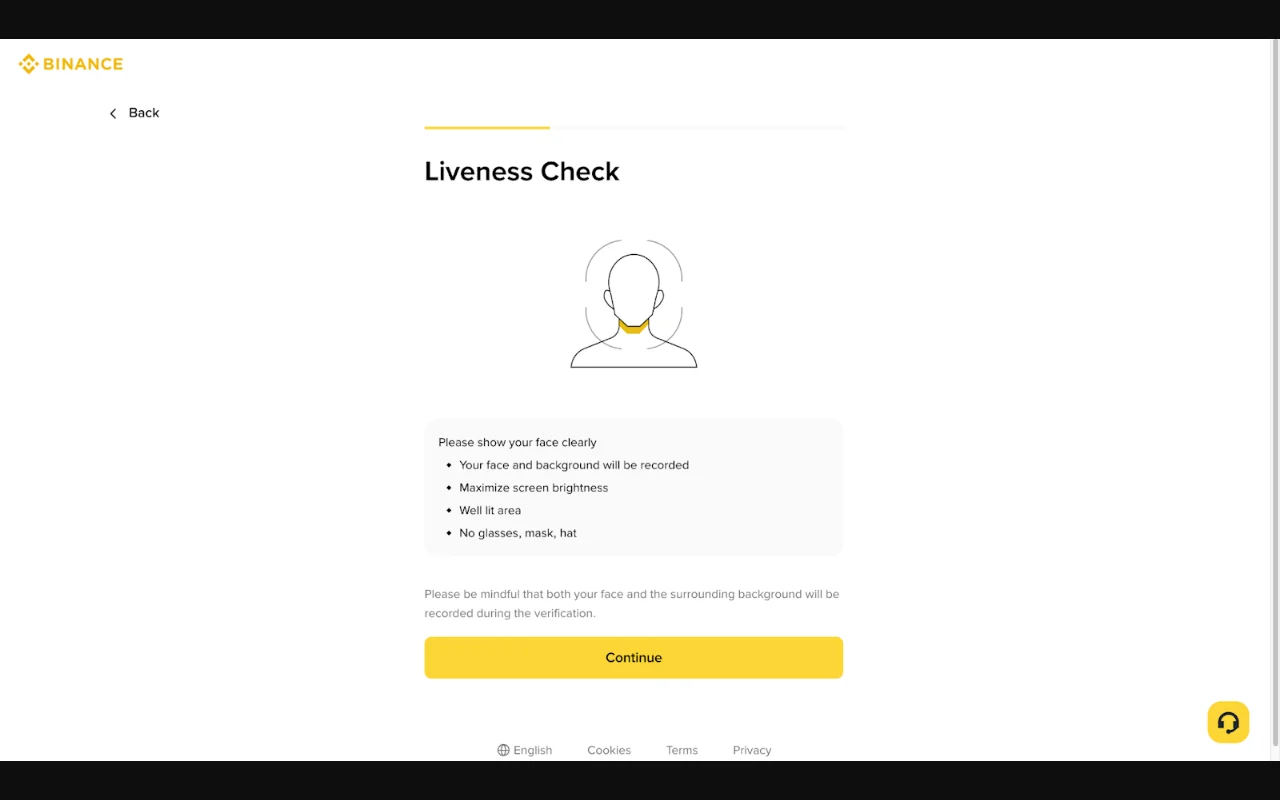
ကင်မရာက ညွှန်ကြားချက်ကို လိုက်နာပြီး မျက်နှာအပြည့် မြင်ရအောင် ထားပါ။ ဦးထုပ်၊ မျက်မှန်အမည်း၊ အလှပြင် filter၊ ကင်မရာအတု ဒါမှမဟုတ် အလင်းပြန်မှုတွေကို ဖယ်ပါ။ သူများက ကိုယ်စားလုပ်ပေးတာ ဒါမှမဟုတ် ကြိုရိုက်ထားတဲ့ဗီဒီယိုသုံးတာက အကောင့်ကန့်သတ်ခံရစေနိုင်ပါတယ်။
မအောင်မြင်ရင် ထပ်ခါထပ်ခါ မကြိုးစားခင် ကင်မရာသုံးခွင့်၊ မှန်ဘီလူး၊ အလင်းရောင်၊ ကွန်ရက်နဲ့ မျက်နှာပြင်ပေါ်က စောင့်ဆိုင်းချိန်စာတန်းကို စစ်ပါ။ မျက်နှာပြင်ရိုက်ကူးခိုင်းတာ၊ အဝေးထိန်းချုပ် app တင်ခိုင်းတာ ဒါမှမဟုတ် ဗီဒီယိုခေါ်ဆိုပြီး "စိစစ်ရေးဝန်ထမ်း" ဆိုသူက တောင်းဆိုလာရင် ရပ်လိုက်ပါ။
နေရပ်လိပ်စာနဲ့ ငွေရင်းမြစ် တောင်းလာရင်
အကောင့်နဲ့ တာဝန်ယူကုမ္ပဏီအလိုက် နေရပ်လိပ်စာသက်သေ၊ အလုပ်အကိုင်၊ ငွေရင်းမြစ် ဒါမှမဟုတ် ဓနအရင်းအမြစ်ကို တောင်းနိုင်ပါတယ်။ KYC ပြီးသွားပြီးနောက်မှာလည်း အချိန်အခါအလိုက် ပြန်စစ်တာ ဒါမှမဟုတ် ထပ်စိစစ်တာ ဖြစ်နိုင်ပါတယ်။
- စာရွက်ရက်စွဲနဲ့ သက်တမ်းလိုအပ်ချက်ကို ဖတ်ပါ။
- အမည်နဲ့ လိပ်စာက အကောင့်အချက်အလက်နဲ့ ကိုက်ညီမကိုက်ညီ စစ်ပါ။
- ဘဏ်စာရင်းရှင်းတမ်း ဒါမှမဟုတ် လစာစာရွက်ကို ပြင်ဆင်မထားပါနဲ့။
- မလိုအပ်တဲ့ငွေလွှဲအသေးစိတ်ကို ဖုံးခွင့်ရှိမရှိ တရားဝင်ညွှန်ကြားချက်မှာ စစ်ပါ။
- တင်သွင်းမှုကို တရားဝင်ပုံစံကနေသာ လုပ်ပါ။
- တင်သွင်းမှုနံပါတ်နဲ့ ရက်စွဲကို မှတ်ထားပါ။
ကိုယ်ရေးကိုယ်တာလုံခြုံမှုအတွက် အများပြည်သူဖိုရမ်တွေမှာ စာရွက်မတင်ပါနဲ့။ အကူအညီတောင်းခံမှုမှာလည်း တရားဝင်လုံခြုံတဲ့တင်သွင်းလင့်ခ် ဟုတ်မဟုတ် စစ်ပါ။
စိစစ်မှု မအောင်မြင်ရင်
- ငြင်းပယ်ရခြင်းအကြောင်းရင်းကို အပြည့်အစုံ ဖတ်ပါ။
- အမည်၊ အစီအစဉ်၊ ရက်စွဲနဲ့ ထုတ်ပေးသည့်နိုင်ငံကို စာရွက်နဲ့ တိုက်စစ်ပါ။
- အလင်းရောင်ပိုကောင်းတဲ့နေရာနဲ့ ကင်မရာကို သုံးပါ။
- စာရွက်သက်တမ်း ကုန်မကုန် စစ်ပါ။
- လက်မခံတဲ့စာရွက်အမျိုးအစား ဖြစ်မဖြစ် စစ်ပါ။
- ထပ်မကြိုးစားခင် စောင့်ဆိုင်းချိန်စာတန်းကို ဖတ်ပါ။
- တရားဝင်အကူအညီဌာနကို မှတ်တမ်းနံပါတ်နဲ့ မေးပါ။
- စကားဝှက်၊ နှစ်ဆင့်အတည်ပြုကုဒ်၊ အီးမေးလ်ကုဒ် ဒါမှမဟုတ် seed phrase ကို မပေးပါနဲ့။
ငြင်းပယ်ခံရတာကို ကျော်ဖို့ အချက်အလက်အတု ဖန်တီးတာ ဒါမှမဟုတ် VPN နဲ့ သူများအထောက်အထား သုံးတာမျိုး မလုပ်ပါနဲ့။
KYC ပြီးလည်း ပစ္စည်းအားလုံး မရနိုင်ပါ
အထောက်အထားစိစစ်မှု အောင်တာ၊ Binance Stocks၊ bStocks ဒါမှမဟုတ် Futures သုံးခွင့်ရတာနဲ့ ticker တစ်ခုအတွက် အော်ဒါတင်နိုင်တာက သီးခြားအဆင့်တွေ ဖြစ်ပါတယ်။ အန္တရာယ်ဆိုင်ရာမေးခွန်းလွှာ ထပ်ဖြေရတာ၊ နေထိုင်ရာအလိုက်ကန့်သတ်ချက် ဒါမှမဟုတ် အကောင့်တာဝန်ယူကုမ္ပဏီအလိုက် စည်းမျဉ်းတွေ ရှိနိုင်ပါတယ်။
KYC အောင်တာကို "မြန်မာမှာ Binance Stocks သုံးခွင့် အတည်ပြုပြီးပြီ" လို့ မပြောပါနဲ့။ ပစ္စည်း menu၊ စည်းကမ်းချက်၊ ticker နဲ့ အော်ဒါ Preview ကို သီးခြားစစ်ပါ။
လုံခြုံရေးအလွှာ ၁ — အီးမေးလ်ကို အရင်ကာကွယ်ပါ
Binance အကောင့်ရဲ့လုံခြုံရေးဟာ မှတ်ပုံတင်ထားတဲ့အီးမေးလ်ထက် ပိုကောင်းလို့ မရနိုင်ပါဘူး။ အီးမေးလ်စကားဝှက်ကို Binance စကားဝှက်နဲ့ မတူအောင်ထားပြီး၊ အီးမေးလ်အကောင့်မှာလည်း အတည်ပြုကုဒ်ထုတ်တဲ့ app ဒါမှမဟုတ် passkey ဖွင့်ထားပါ။ ပြန်လည်ရယူရေး အီးမေးလ်/ဖုန်းနဲ့ ဝင်ရောက်နေဆဲ session တွေကိုလည်း ပြန်စစ်ပါ။
Inbox ထဲမှာ စာလွှဲပို့တဲ့စည်းမျဉ်း၊ ပြန်လည်ရယူနည်း ဒါမှမဟုတ် မသိတဲ့ app ဝင်ရောက်ခွင့် ထည့်ထားတာ ရှိမရှိ စစ်ပါ။ အီးမေးလ် အလုယူခံရရင် ငွေထုတ်လိပ်စာအတည်ပြုချက်၊ စကားဝှက်ပြန်သတ်မှတ်ခြင်းနဲ့ လုံခြုံရေးသတိပေးချက် အားလုံး ထိခိုက်နိုင်ပါတယ်။
လုံခြုံရေးအလွှာ ၂ — အတည်ပြုကုဒ် app၊ passkey နဲ့ hardware key
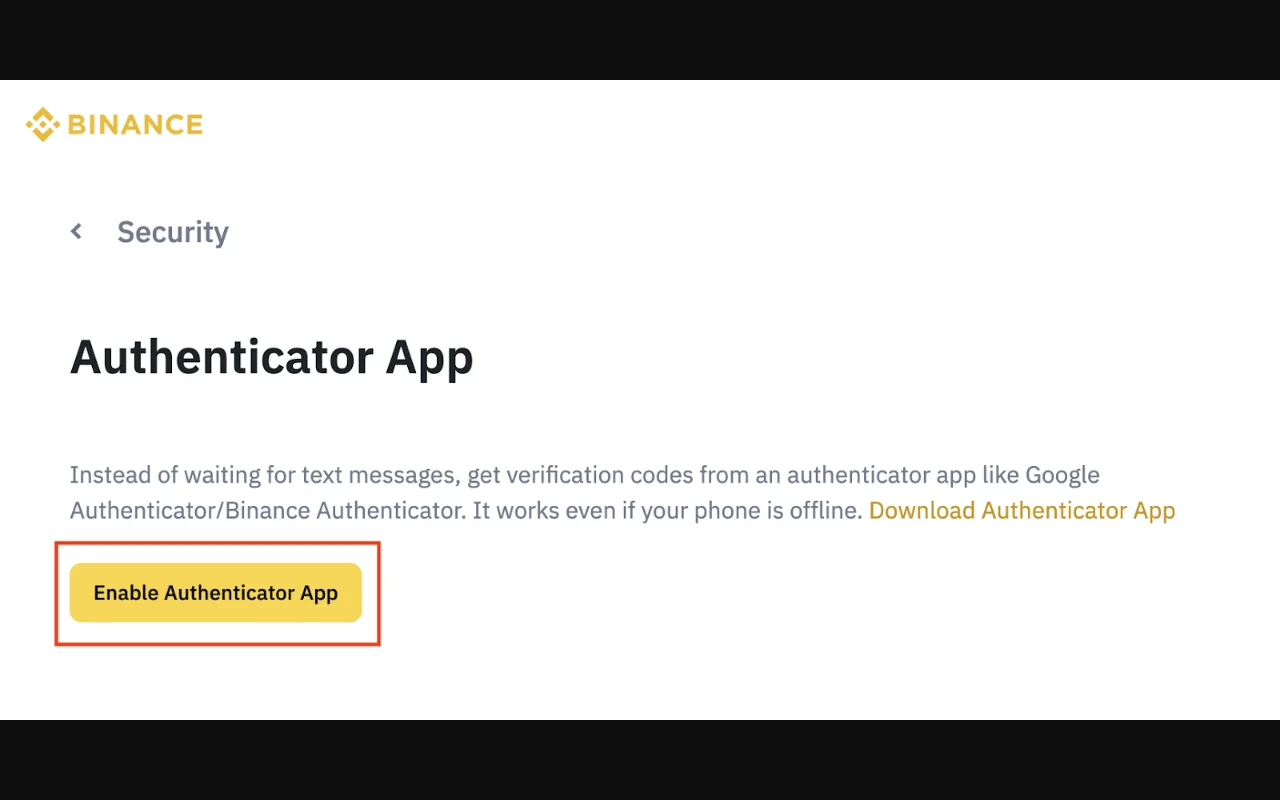
Binance Academy ရဲ့ 2FA လမ်းညွှန် အရ SMS၊ အတည်ပြုကုဒ်ထုတ်တဲ့ app၊ hardware key နဲ့ passkey စတဲ့နည်းလမ်းတွေ ရှိပါတယ်။ SMS ဟာ ဘာမှမထားတာထက် ကောင်းပေမယ့် ဖုန်းကတ်လုယူခံရနိုင်တဲ့အန္တရာယ် ရှိပြီး၊ အတည်ပြုကုဒ် app၊ passkey နဲ့ hardware key တို့က အဝေးကနေလှည့်စားတဲ့အန္တရာယ်အချို့ကို ပိုလျှော့ပေးနိုင်ပါတယ်။
အတည်ပြုကုဒ် app ဖွင့်တဲ့အဆင့်တွေနဲ့ ပြန်လည်ရယူရေးကုဒ်အတွက် သတိပေးချက်ကို Binance ရဲ့ တရားဝင် 2FA လမ်းညွှန် နဲ့ တိုက်စစ်ပါ။ ပြန်လည်ရယူရေးကုဒ်၊ အရံကုဒ် ဒါမှမဟုတ် တစ်ကြိမ်သုံးကုဒ်တွေကို screenshot၊ chat၊ အီးမေးလ်မူကြမ်း ဒါမှမဟုတ် အများသုံး cloud မှတ်စုမှာ မမျှဝေပါနဲ့။
စက်မပြောင်းမီ ပြန်လည်ရယူရေး အစီအစဉ်
- နည်းလမ်းအသစ်ကို အကောင့်ထဲ မှတ်ပုံတင်ပြီး စမ်းကြည့်ပါ။
- အရံကုဒ်နဲ့ ပြန်လည်ရယူရေးကုဒ်ကို အင်တာနက်နဲ့မချိတ်ဘဲ လုံခြုံစွာ သိမ်းပါ။
- စက်အဟောင်းကို စက်ရုံထုတ်အခြေအနေ မပြန်ချမီ ဝင်ရောက်မှုနဲ့ ပြန်လည်ရယူမှုကို စမ်းပါ။
- ဖုန်းနံပါတ်နဲ့ အီးမေးလ် ဆက်သုံးနိုင်သေးမသေး စစ်ပါ။
- နည်းလမ်းတစ်ခုဖြုတ်ပြီးနောက် ငွေထုတ်ကန့်သတ်ချက် ဒါမှမဟုတ် စောင့်ဆိုင်းချိန် ရှိမရှိ ဖတ်ပါ။
Passkey ကို သူများနဲ့မျှသုံးတဲ့စက် ဒါမှမဟုတ် သူများရဲ့ cloud အကောင့်မှာ မသိမ်းပါနဲ့။
လုံခြုံရေးအလွှာ ၃ — သီးသန့်စကားဝှက်နဲ့ စကားဝှက်သိမ်းတဲ့ program
တခြားဝဘ်ဆိုက်တွေမှာ မသုံးဖူးတဲ့ သီးသန့်စကားဝှက်တစ်ခု ဖန်တီးပြီး၊ ယုံကြည်ရတဲ့ စကားဝှက်သိမ်းတဲ့ program နဲ့ သိမ်းပါ။ အီးမေးလ်စကားဝှက်နဲ့ Binance စကားဝှက် မတူရပါဘူး။ ရက်သတ်မှတ်ပြီး မကြာခဏပြောင်းရမယ်လို့ မဆိုနိုင်ပေမယ့်၊ အလုယူခံရမလားလို့ သံသယရှိရင်၊ လှည့်စားတဲ့စာမျက်နှာမှာ ထည့်မိရင် ဒါမှမဟုတ် တခြားဝဘ်ဆိုက်ကနေ ပေါက်ကြားထားတဲ့စကားဝှက်ကို ပြန်သုံးထားရင် ချက်ချင်း ပြောင်းပါ။
ဘရောက်ဇာ ဒါမှမဟုတ် စကားဝှက်သိမ်းတဲ့ program က တရားဝင်လိပ်စာအတိအကျနဲ့ ကိုက်မကိုက် စစ်ပေးတာဟာ လှည့်စားတဲ့စာမျက်နှာကို ခွဲခြားရာမှာ ကူညီနိုင်ပါတယ်။
လုံခြုံရေးအလွှာ ၄ — Anti-phishing code
Anti-phishing code ရနိုင်ရင် သီးသန့်ကုဒ်တစ်ခု သတ်မှတ်ပါ။ Binance အမည်နဲ့ရောက်လာတဲ့အီးမေးလ်မှာ ကုဒ်မပါတာ ဒါမှမဟုတ် မှားနေတာဟာ သတိပေးချက် ဖြစ်နိုင်ပါတယ်။ ဒါပေမယ့် ကုဒ်ပါရုံနဲ့ အဲဒီအီးမေးလ်ကို 100% လုံခြုံတယ်လို့ မဆိုနိုင်ပါဘူး— လွှဲပို့ထားတဲ့ screenshot၊ အလုယူခံထားရတဲ့ inbox ဒါမှမဟုတ် ပေါက်ကြားသွားတဲ့ကုဒ် ဖြစ်နိုင်ပါတယ်။
ပို့သူလိပ်စာ၊ လင့်ခ်ရဲ့ဝဘ်ဆိုက်လိပ်စာ၊ စာရဲ့အကြောင်းအရာနဲ့ အကောင့်ထဲက အသိပေးချက်ကိုပါ စစ်ပါ။ အီးမေးလ်ထဲက လင့်ခ်ကို မနှိပ်ဘဲ သိမ်းထားတဲ့ bookmark ကနေ တရားဝင်အကောင့်ထဲဝင်ပြီး အသိပေးချက်ကို စစ်တာ ပိုကောင်းပါတယ်။
လုံခြုံရေးအလွှာ ၅ — စက်နဲ့ အကောင့်လှုပ်ရှားမှု ပြန်စစ်ခြင်း
Binance ပင်မစာမျက်နှာက ကိုယ်ရေးအချက်အလက် menu ကနေ Account ထဲဝင်ပြီး Security နဲ့ Device and Activities ကို စစ်ပါ။ Menu အမည်တွေက ဒေသနဲ့ အပြောင်းအလဲအလိုက် ကွာနိုင်ပါတယ်။
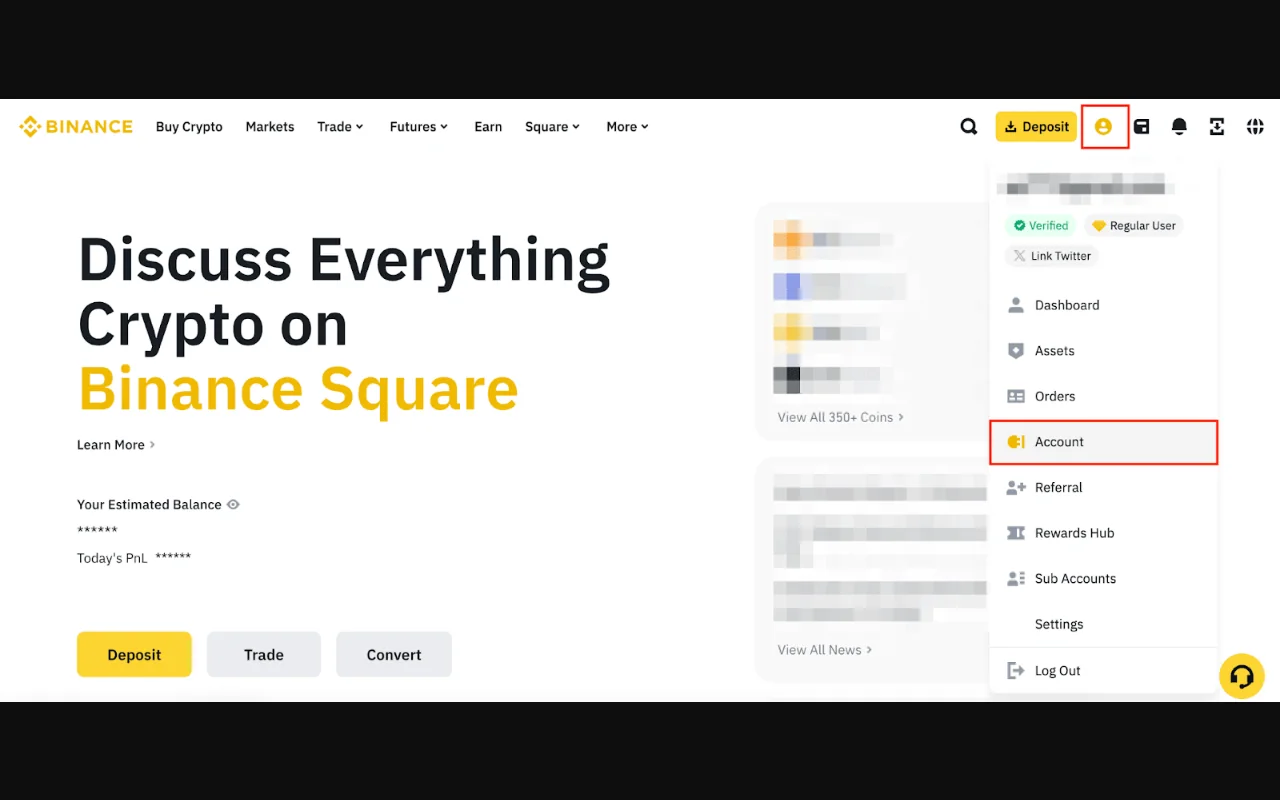
Binance Academy ရဲ့ အကောင့်လုံခြုံရေးလမ်းညွှန် မှာ ခွင့်ပြုထားတဲ့စက်တွေ၊ ဝင်ရောက်တဲ့ IP နဲ့ အချိန်၊ အကောင့်လှုပ်ရှားမှုတွေကို ပုံမှန်စစ်ဖို့ အကြံပြုထားပါတယ်။
- မသိတဲ့စက် ဒါမှမဟုတ် ဝင်ရောက်နေဆဲ session ကို ရုပ်သိမ်းပါ။
- မသုံးတော့တဲ့ စက်အဟောင်းတွေကို ဖယ်ပါ။
- ဝင်ရောက်ချိန်နဲ့ IP မကိုက်ရင် စကားဝှက်နဲ့ အီးမေးလ်လုံခြုံရေးကို ချက်ချင်းစစ်ပါ။
- သံသယဖြစ်စရာလှုပ်ရှားမှုရှိရင် တရားဝင် အကောင့်ပိတ်ခြင်း ဒါမှမဟုတ် အကူအညီတောင်းခြင်းအဆင့်ကို သုံးပါ။
IP တည်နေရာတစ်ခုတည်းက တိုက်ခိုက်သူရဲ့တည်နေရာအတိအကျကို အာမမခံနိုင်ပေမယ့်၊ မသိတဲ့စက်နဲ့ အချိန်နဲ့ တွဲပြနေရင်တော့ သတိပေးချက် ဖြစ်ပါတယ်။
လုံခြုံရေးအလွှာ ၆ — API key ကို အနည်းဆုံးခွင့်ပြုချက်သာ ပေးပါ
API key မလိုရင် လုံးဝ မဖန်တီးပါနဲ့။ ပြင်ပ bot ဒါမှမဟုတ် ဝန်ဆောင်မှုတစ်ခုက API ဝင်ရောက်ခွင့် တောင်းလာရင် အဲဒီကုမ္ပဏီရဲ့ဂုဏ်သတင်း၊ ဘယ်ခွင့်ပြုချက်တွေတောင်းလဲနဲ့ ပြန်ရုပ်သိမ်းနိုင်မလားဆိုတာ စစ်ပါ။
- ဖတ်ရုံသက်သက်လိုလား၊ အရောင်းအဝယ်ပါလိုလား ခွဲပါ။
- ငွေထုတ်ခွင့် မလိုရင် မပေးပါနဲ့။
- IP ကန့်သတ်ချက် ထားနိုင်ရင် သုံးပါ။
- Key တစ်ခုတည်းကို ဝန်ဆောင်မှုအများအပြားအတွက် မမျှဝေပါနဲ့။
- လျှို့ဝှက်ကုဒ်ကို ပရိုဂရမ်ကုဒ်၊ screenshot ဒါမှမဟုတ် chat ထဲ မတင်ပါနဲ့။
- မသုံးတော့ရင် ရုပ်သိမ်းပါ။
API key ပေါက်ကြားမလားလို့ သံသယရှိရင် ချက်ချင်းလဲလှယ် ဒါမှမဟုတ် ရုပ်သိမ်းပြီး၊ အော်ဒါနဲ့ လှုပ်ရှားမှုမှတ်တမ်းကို စစ်ပါ။
လုံခြုံရေးအလွှာ ၇ — ငွေထုတ်လိပ်စာစာရင်းနဲ့ အစမ်းလွှဲခြင်း
ငွေထုတ်လိပ်စာကို ကြိုတင်မှတ်ထားနိုင်တဲ့စနစ် ရနိုင်ရင် သုံးပါ။ ကွန်ရက်အမျိုးအစားနဲ့ လိပ်စာကို နှစ်ကြိမ်စစ်ပြီး၊ ပမာဏကြီးကြီး မလွှဲခင် အနည်းငယ်နဲ့ အရင်စမ်းဖို့ စဉ်းစားပါ။ Clipboard ကို တိုက်ခိုက်တဲ့ ဗိုင်းရပ်စ်ကြောင့် ကူးထည့်လိုက်တဲ့လိပ်စာ ပြောင်းသွားနိုင်တဲ့အတွက်၊ ရှေ့ဆုံးနဲ့နောက်ဆုံးစာလုံးတွေတင်မကဘဲ လိပ်စာအပိုင်းများစွာကို တိုက်စစ်ပါ။
လိပ်စာစာရင်းဟာ မှတ်ပုံတင်ထားတဲ့အီးမေးလ် ဒါမှမဟုတ် အကောင့် အလုယူခံရရင် အပြည့်အဝ မကာကွယ်နိုင်တဲ့အတွက်၊ အီးမေးလ်ရဲ့ နှစ်ဆင့်အတည်ပြုမှုနဲ့ စက်လုံခြုံရေးကို တွဲသုံးရပါတယ်။ လိပ်စာအသစ်ထည့်ခြင်းနဲ့ စောင့်ဆိုင်းချိန်စည်းမျဉ်းကို လက်ရှိမျက်နှာပြင်ကနေ ဖတ်ပါ။
လှည့်စားမှုနဲ့ အယောင်ဆောင်မှု သတိပြုရမည့်အချက်များ
- "အကောင့်ပိတ်တော့မယ်၊ အခုချက်ချင်း ဝင်ပါ" ဆိုပြီး အလျင်အမြန် ဖိအားပေးခြင်း
- အကူအညီဌာနက စကားဝှက်၊ နှစ်ဆင့်အတည်ပြုကုဒ် ဒါမှမဟုတ် အီးမေးလ်ကုဒ် တောင်းခြင်း
- မျက်နှာပြင်မျှဝေခိုင်းခြင်း ဒါမှမဟုတ် အဝေးထိန်းချုပ် app တင်ခိုင်းခြင်း
- Seed phrase၊ private key ဒါမှမဟုတ် ပြန်လည်ရယူရေးကုဒ် တောင်းခြင်း
- "လုံခြုံတဲ့ wallet" ဒါမှမဟုတ် "အစမ်းလွှဲကြည့်ရအောင်" ဆိုပြီး ငွေပို့ခိုင်းခြင်း
- ဝဘ်ဆိုက်လိပ်စာ စာလုံးပေါင်း ဆင်တူပေမယ့် အတိအကျ မတူခြင်း
- ရှာဖွေမှုကြော်ငြာ ဒါမှမဟုတ် တရားမဝင် APK ဒေါင်းခိုင်းခြင်း
- KYC ဒါမှမဟုတ် သုံးခွင့် ဖွင့်ပေးမယ်ဆိုပြီး ငွေတောင်းခြင်း
- Deepfake ဗီဒီယို ဒါမှမဟုတ် အသံဖြင့် ခေါ်ဆိုပြီး အလျင်အမြန်ဖြစ်အောင် လုပ်ခြင်း
ဝင်ရောက်မှုနဲ့ပတ်သက်ပြီး သံသယရှိရင် စာထဲကလင့်ခ်ကို မသုံးဘဲ တရားဝင် bookmark ဒါမှမဟုတ် app ကနေ အကောင့်ကို စစ်ပါ။
အကောင့် အလုယူခံရမလားလို့ သံသယရှိရင်
- သန့်ရှင်းတယ်လို့ သေချာတဲ့စက်ကနေ မှတ်ပုံတင်ထားတဲ့အီးမေးလ်စကားဝှက်ကို ပြောင်းပြီး၊ အီးမေးလ် session တွေနဲ့ ပြန်လည်ရယူရေးစည်းမျဉ်းတွေကို စစ်ပါ။
- တရားဝင် Binance bookmark ဒါမှမဟုတ် app ကနေ စကားဝှက် ပြောင်းပါ။
- မသိတဲ့စက်၊ session တွေနဲ့ API key တွေကို ရုပ်သိမ်းပါ။
- ဖွင့်ထားဆဲအော်ဒါ၊ အရောင်းအဝယ်၊ ငွေထုတ်မှုနဲ့ လိပ်စာမှတ်တမ်းတွေကို စစ်ပါ။
- တရားဝင် အကောင့်ပိတ်ခြင်း ဒါမှမဟုတ် လုံခြုံရေးအဆင့် ရနိုင်ရင် သုံးပါ။
- မှတ်တမ်းနံပါတ်နဲ့ တရားဝင်အကူအညီဌာနကို ဆက်သွယ်ပါ။
- ငွေလွှဲနံပါတ်၊ အချိန်မှတ်တမ်းနဲ့ screenshot တွေကို ကိုယ်ရေးအချက်အလက်ဖုံးပြီး သိမ်းပါ။
- "ပြန်လည်ရယူပေးမယ့်ဝန်ထမ်း" ဆိုသူဆီ ငွေမပို့ပါနဲ့။
စိတ်လှုပ်ရှားပြီး တိုက်ခိုက်သူပေးတဲ့ "လုံခြုံတဲ့လိပ်စာ" ဆီ ငွေမပို့ပါနဲ့။ စက်ထဲ ဗိုင်းရပ်စ်ရှိမလားလို့ သံသယရှိရင် လုံခြုံရေးကျွမ်းကျင်သူရဲ့ အကူအညီယူပါ။
လစဉ် စစ်ဆေးရန်စာရင်း
- အီးမေးလ်နဲ့ Binance မှာ ခွင့်ပြုထားတဲ့စက်များ
- နှစ်ဆင့်အတည်ပြုမှု၊ passkey နဲ့ ပြန်လည်ရယူနည်း
- Anti-phishing code
- API key၊ ခွင့်ပြုချက်နဲ့ IP ကန့်သတ်ချက်များ
- ငွေထုတ်လိပ်စာစာရင်း
- ဝင်ရောက်မှု၊ အရောင်းအဝယ်နဲ့ ငွေထုတ်မှတ်တမ်း
- App၊ ဘရောက်ဇာနဲ့ စက်၏ဆော့ဖ်ဝဲ အသစ်ပြင်ဆင်မှု
- သိမ်းထားတဲ့ တရားဝင် bookmark
- စာရွက်သက်တမ်းနဲ့ ထပ်စိစစ်ရန် အသိပေးချက်
လုံခြုံရေးဆိုတာ တစ်ကြိမ်ပြင်ဆင်ပြီးရင် ပြီးသွားတာမဟုတ်ဘဲ ပုံမှန်လုပ်ရမယ့်အလုပ် ဖြစ်ပါတယ်။ အထောက်အထားစာရွက်ကို အမှန်အတိုင်းတင်ခြင်း၊ အကောင့်နဲ့ အီးမေးလ်ကို အလွှာလိုက်ကာကွယ်ခြင်းနဲ့ တရားဝင်မျက်နှာပြင်ကိုသာ ယုံကြည်ခြင်းက အကောင့်ဆိုင်ရာအန္တရာယ်ကို လျှော့ပေးပါတယ်။ ဒီအကြောင်းအရာဟာ လုံခြုံရေးပညာပေးဖြစ်ပြီး၊ ပစ္စည်းသုံးခွင့် ဒါမှမဟုတ် ငွေလုံခြုံမှုကို အာမမခံပါဘူး။
KYC နဲ့ နှစ်ဆင့်အတည်ပြုမှု ပြီးပြီလား ဘယ်လိုသိမလဲ
အောက်ပါ ခြောက်ချက်လုံး အတည်ပြုနိုင်မှ ဒီလမ်းညွှန်ရဲ့အလုပ် ပြီးပြီလို့ ယူပါ—
- ကိုယ်ရေးအချက်အလက်စာမျက်နှာက စိစစ်မှုအခြေအနေမှာ Verified/Completed လို့ လက်ရှိမျက်နှာပြင်ပေါ် ပြနေပြီ။
- တင်သွင်းထားတဲ့ အမည်၊ မွေးသက္ကရာဇ်၊ နေထိုင်ရာနဲ့ စာရွက်အချက်အလက်တွေကို အကောင့်မှတ်တမ်းမှာ မှန်ကန်စွာ ပြနေပြီ။
- စောင့်ဆိုင်းဆဲ၊ ငြင်းပယ်ခံရ ဒါမှမဟုတ် ထပ်စိစစ်ရန် စာတန်း မရှိတော့ပြီ။ ရှိရင် မှတ်တမ်းနံပါတ်နဲ့ လုပ်ရမယ့်အဆင့်ကို မှတ်ထားပြီ။
- အတည်ပြုကုဒ် app ဒါမှမဟုတ် passkey ကို Security စာမျက်နှာမှာ ဖွင့်ထားပြီလို့ ပြနေပြီး၊ ပြန်လည်ရယူနည်းကို အင်တာနက်နဲ့မချိတ်ဘဲ သိမ်းထားပြီ။
- စက်နဲ့ အကောင့်လှုပ်ရှားမှုထဲမှာ မသိတဲ့ session မရှိတော့ဘဲ၊ အီးမေးလ်အကောင့်ကိုလည်း နှစ်ဆင့်အတည်ပြုမှုနဲ့ ကာကွယ်ထားပြီ။
- သုံးချင်တဲ့ Stocks၊ ETF ဒါမှမဟုတ် Futures ပစ္စည်းအတွက် သုံးခွင့်ကို သီးခြားစစ်ထားပြီ— KYC ပြီးတိုင်း ပစ္စည်းသုံးခွင့် အလိုအလျောက် မရပါဘူး။
စာရွက်တင်လို့ရရုံ၊ မျက်နှာဓာတ်ပုံရိုက်ပြီးရုံ ဒါမှမဟုတ် အတည်ပြုအီးမေးလ်ရရုံကို ပြီးဆုံးပြီလို့ မယူပါနဲ့။ အကောင့်ရဲ့ စိစစ်မှုအခြေအနေနဲ့ လုံခြုံရေးအခြေအနေ နှစ်ခုလုံးကို ပြန်ကြည့်ရပါမယ်။
လက်ရှိ တရားဝင်ရင်းမြစ်များ
- Binance: KYC အလုပ်လုပ်ပုံနှင့် document scope
- Binance: 2FA အခြေခံ
- Binance: Account security အလွှာများ